# VMWare ESXi
# Unzulässigen Hostnamen ändern
Per SSH Verbinden und:
```bash
esxcfg-advcfg -s ESXi_4 /Misc/hostname
```
Wo ESXi\_4 der Hostname des Servers sein soll, anfangs sollte das system "localhost.localdomain" sagen, das wird damit geändert so heißt das Ding nachher nur noch "ESXi\_4"
# CVE-2018-3646
Dieser Host ist potenziell anfällig für in CVE-2018-3646 beschriebene Probleme; Details und VMware-Empfehlungen finden Sie in https://kb.vmware.com/s/article/55636.
[](https://mach7.space/uploads/images/gallery/2024-09/dfsfGojCuw6kQVcO-grafik.png)
SSH:
```bash
esxcli system settings kernel set -s hyperthreadingMitigation -v TRUE
```
Quelle: [https://knowledge.broadcom.com/external/article?legacyId=55806](https://knowledge.broadcom.com/external/article?legacyId=55806)
1. **Update Phase: Apply vSphere Updates and Patches**
The Sequential-context attack vector is mitigated by a vSphere update to the product versions listed in VMware Security Advisory [VMSA-2018-0020](https://www.vmware.com/security/advisories/VMSA-2018-0020.html). This mitigation is dependent on Intel microcode updates (provided in separate ESXi patches for most Intel hardware platforms) which are also documented in [VMSA-2018-0020](https://www.vmware.com/security/advisories/VMSA-2018-0020.html). This mitigation is enabled by default and does not impose a significant performance impact.
**Note**: As displayed in the workflow above, vCenter Server should be updated prior to applying ESXi patches. Notification messages were added in the aforementioned updates and patches to explain that the ESXi Side-Channel-Aware Scheduler must be enabled to mitigate the Concurrent-context attack vector of [CVE-2018-3646](https://cve.mitre.org/cgi-bin/cvename.cgi?name=CVE-2018-3646). If ESXi is updated prior to vCenter you may receive cryptic notification messages relating to this. After vCenter has been updated, the notifications will be shown correctly.
2. **Planning Phase: Assess Your Environment**
The Concurrent-context attack vector is mitigated through enablement of the ESXi Side-Channel-Aware Scheduler which is included in the updates and patches listed in [VMSA-2018-0020](https://www.vmware.com/security/advisories/VMSA-2018-0020.html). This scheduler is not enabled by default. Enablement of this scheduler may impose a non-trivial performance impact on applications running in a vSphere environment. The goal of the Planning Phase is to understand if your current environment has sufficient CPU capacity to enable the scheduler without operational impact.
The following list summarizes potential problem areas after enabling the ESXi Side-Channel-Aware Scheduler:
- VMs configured with vCPUs greater than the physical cores available on the ESXi host
- VMs configured with custom affinity or NUMA settings
- VMs with latency-sensitive configuration
- ESXi hosts with Average CPU Usage greater than 70%
- Hosts with custom CPU resource management options enabled
- HA Clusters where a rolling upgrade will increase Average CPU Usage above 100%
**Important**: The above list is meant to be a brief overview of potential problem areas related to enablement of the ESXi Side-Channel-Aware Scheduler.
**Note**: It may be necessary to acquire additional hardware, or rebalance existing workloads, before enablement of the ESXi Side-Channel-Aware Scheduler. Organizations can choose not to enable the ESXi Side-Channel-Aware Scheduler after performing a risk assessment and accepting the risk posed by the Concurrent-context attack vector. This is NOT RECOMMENDED and VMware cannot make this decision on behalf of an organization.
3. **Scheduler-Enablement Phase:**
1. **Enable the ESXi Side-Channel-Aware Scheduler in ESXi 5.5, 6.0, 6.5, and 6.7 (prior to 6.7u2) and 7.0.**
After addressing the potential problem areas described above during the Planning Phase, the ESXi Side-Channel-Aware Scheduler must be enabled to mitigate the Concurrent-context attack vector of [CVE-2018-3646](https://cve.mitre.org/cgi-bin/cvename.cgi?name=CVE-2018-3646). The scheduler can be enabled on an individual ESXi host via the advanced configuration option *hyperthreadingMitigation*.
**Notes**:
- Enabling this option will result in the vSphere UI reporting only a single logical processor per physical core; halving the number of logical processors if Hyperthreading was previously enabled. In addition Hyperthreading may be reported as 'Disabled' in various configuration tabs.
- The current ESXi Side-Channel-Aware scheduler also addresses [CVE-2018-5407](https://cve.mitre.org/cgi-bin/cvename.cgi?name=CVE-2018-5407).
Enabling the ESXi Side-Channel-Aware Scheduler using the vSphere Web Client or vSphere Client
1. Connect to the vCenter Server using either the vSphere Web or vSphere Client.
2. Select an ESXi host in the inventory.
3. Click the **Manage** (5.5/6.0) or Configure (6.5/6.7/7.0) tab.
4. Click the **Settings** sub-tab.
5. Under the System heading, click **Advanced System Settings**.
6. Click in the Filter box and search VMkernel.Boot.hyperthreadingMitigation
7. Select the setting by name and click the **Edit** pencil icon.
8. Change the configuration option to true (default: false).
9. Click **OK**.
10. Reboot the ESXi host for the configuration change to go into effect.
Enabling the ESXi Side-Channel-Aware Scheduler using ESXi Embedded Host Client
1. Connect to the ESXi host by opening a web browser to https://*HOSTNAME*.
2. Click the **Manage** tab.
3. Click the **Advanced settings** sub-tab.
4. Click in the Filter box and search VMkernel.Boot.hyperthreadingMitigation
5. Select the setting by name and click the **Edit** pencil icon.
6. Change the configuration option to true (default: false).
7. Click **Save**.
8. Reboot the ESXi host for the configuration change to go into effect.
Enable ESXi Side-Channel-Aware Scheduler setting using ESXCLI
1.
SSH to an ESXi host or open a console where the remote ESXCLI is installed. For more information, see the [ESXCLI Developer Portal](https://developer.broadcom.com/tools/esxcli/latest).
2.
Check the current runtime value of the HTAware Mitigation Setting by running esxcli system settings kernel list -o hyperthreadingMitigation
3.
To enable HT Aware Mitigation, run this command:
esxcli system settings kernel set -s hyperthreadingMitigation -v TRUE
4. Reboot the ESXi host for the configuration change to go into effect.
**Note****: **ESXi 6.7u2 (13006603) and future release lines of ESXi include the ESXi Side-Channel-Aware Scheduler v2. Prior release lines such as 6.5, 6.0, and 5.5 cannot accommodate this new scheduler.
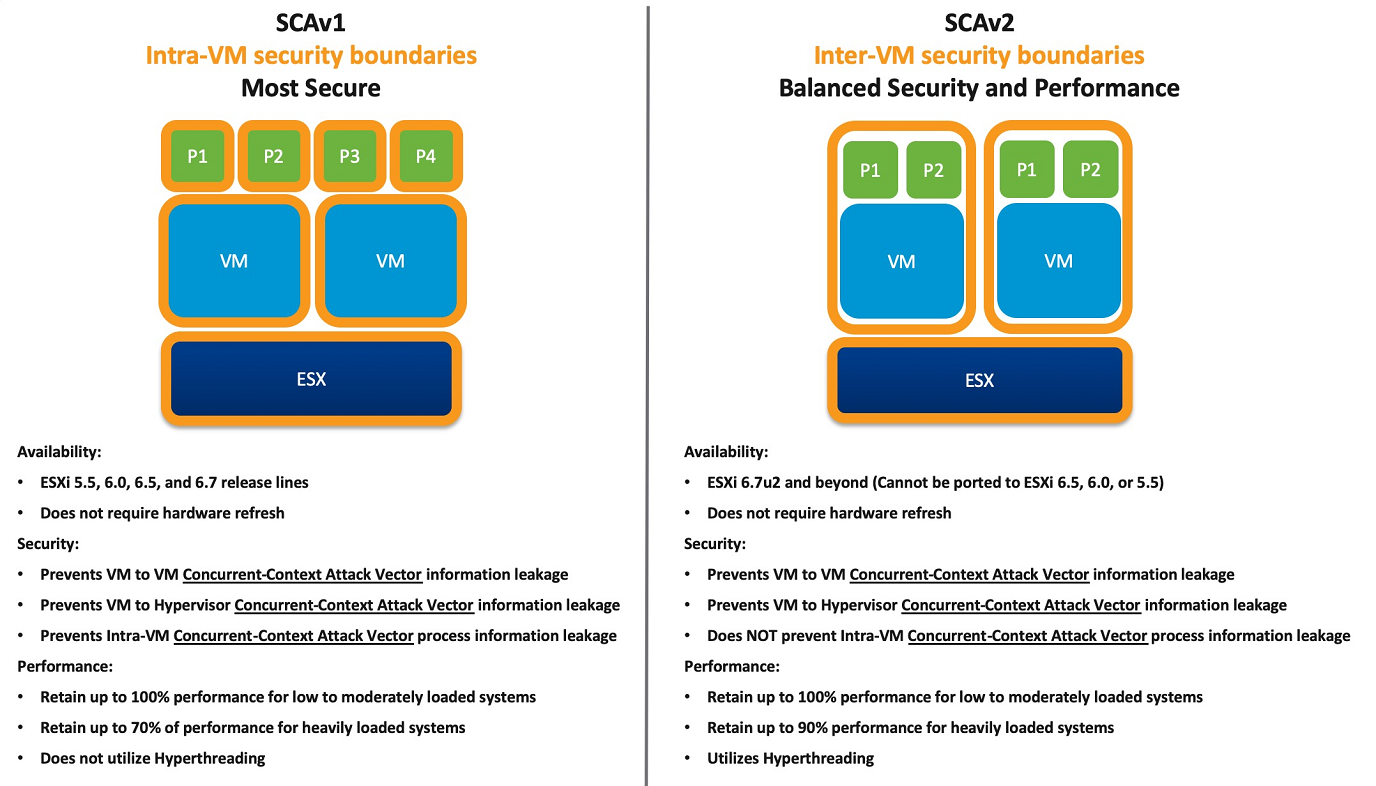
VMware has published a white paper entitled [Performance of vSphere 6.7 Scheduling Options](https://www.vmware.com/techpapers/2018/scheduler-options-vsphere67u2-perf.html) which provides a more detailed look into the performance differences between SCAv1 and SCAv2. Please review this document before continuing.
Enabling the ESXi Side-Channel-Aware Scheduler (SCAv1) using the vSphere Web Client or vSphere Client
1. Connect to the vCenter Server using either the vSphere Web or vSphere Client.
2. Select an ESXi host in the inventory.
3. Click the Configure tab.
4. Under the System heading, click **Advanced System Settings**.
5. Click **Edit**.
6. Click in the Filter box and search VMkernel.Boot.hyperthreadingMitigation.
7. Select the setting by name.
8. Change the configuration option to true (default: false).
9. Click in the Filter box and search VMkernel.Boot.hyperthreadingMitigationIntraVM.
10. Change the configuration option to true (default: true).
11. Click **OK**.
12. Reboot the ESXi host for the configuration change to go into effect.
Enabling the ESXi Side-Channel-Aware Scheduler (SCAv1) using ESXi Embedded Host Client
1. Connect to the ESXi host by opening a web browser to https://*HOSTNAME*.
2. Click **Manage** under host navigator.
3. Click the **Advanced settings** Tab.
4. Use the search box to find VMkernel.Boot.hyperthreadingMitigation
5. Select the VMkernel.Boot.hyperthreadingMitigation setting and click the **Edit** Option.
6. Change the configuration option to true (default: false).
7. Click **Save.**
8. Use the search box to find VMkernel.Boot.hyperthreadingMitigationIntraVM.
9. Select the VMkernel.Boot.hyperthreadingMitigationIntraVM setting and click the **Edit** Option.
10. Change the configuration option to true (default: true).
11. Click **Save**.
12. Reboot the ESXi host for the configuration change to go into effect.
Enable ESXi Side-Channel-Aware Scheduler (SCAv1) using ESXCLI
1. SSH to an ESXi host or open a console where the remote ESXCLI is installed. For more information, see the [ESXCLI Developer Portal](https://developer.broadcom.com/tools/esxcli/latest)..
2. Check the current runtime values by running esxcli system settings kernel list -o hyperthreadingMitigation and esxcli system settings kernel list -o hyperthreadingMitigationIntraVM.
3. To enable the ESXi Side-Channel-Aware Scheduler Version 1 run these commands:
4. esxcli system settings kernel set -s hyperthreadingMitigation -v TRUE
5. esxcli system settings kernel set -s hyperthreadingMitigationIntraVM -v TRUE
6. Reboot the ESXi host for the configuration change to go into effect.
Enabling the ESXi Side-Channel-Aware Scheduler Version 2 (SCAv2) using the vSphere Web Client or vSphere Client
1. Connect to the vCenter Server using either the vSphere Web or vSphere Client.
2. Select an ESXi host in the inventory.
3. Click the Configure tab.
4. Under the System heading, click **Advanced System Settings**.
5. Click **Edit.**
6. Click in the Filter box and search VMkernel.Boot.hyperthreadingMitigation.
7. Select the setting by name.
8. Change the configuration option to true (default: false).
9. Click in the Filter box and search VMkernel.Boot.hyperthreadingMitigationIntraVM.
10. Change the configuration option to false (default: true).
11. Click **OK**.
12. Reboot the ESXi host for the configuration change to go into effect.
Enabling the ESXi Side-Channel-Aware Scheduler Version 2 (SCAv2) using ESXi Embedded Host Client
1. Connect to the ESXi host by opening a web browser to https://*HOSTNAME*.
2. Click **Manage** under host navigator.
3. Click the **Advanced settings** Tab.
4. Use the search box to find VMkernel.Boot.hyperthreadingMitigation.
5. Select the VMkernel.Boot.hyperthreadingMitigation setting and click the **Edit** Option.
6. Change the configuration option to true (default: false).
7. Click **Save.**
8. Use the search box to find VMkernel.Boot.hyperthreadingMitigationIntraVM.
9. Select the VMkernel.Boot.hyperthreadingMitigationIntraVM setting and click the **Edit** Option.
10. Change the configuration option to false (default: true).
11. Click **Save**.
12. Reboot the ESXi host for the configuration change to go into effect.
Enable ESXi Side-Channel-Aware Scheduler Version 2 (SCAv2) using ESXCLI
1. SSH to an ESXi host or open a console where the remote ESXCLI is installed. For more information, see the [ESXCLI Developer Portal](https://developer.broadcom.com/tools/esxcli/latest)..
2. Check the current runtime values by running esxcli system settings kernel list -o hyperthreadingMitigation and esxcli system settings kernel list -o hyperthreadingMitigationIntraVM
3. To enable the ESXi Side-Channel-Aware Scheduler Version 1 run these commands:
4. esxcli system settings kernel set -s hyperthreadingMitigation -v TRUE
5. esxcli system settings kernel set -s hyperthreadingMitigationIntraVM -v FALSE
6. Reboot the ESXi host for the configuration change to go into effect.
**ESXi 6.7u2 (and later) Scheduler Configuration Summary**
| hyperthreadingMitigation | hyperthreadingMitigationIntraVM | Scheduler Enabled |
| FALSE | TRUE or FALSE | Default scheduler (unmitigated) |
| TRUE | TRUE | SCAv1 |
| TRUE | FALSE | SCAv2 |
| **Intel Code Name** | **FMS** | **Intel Brand Names** |
| Nehalem-EP | 0x106a5 | Intel Xeon 35xx Series;
Intel Xeon 55xx Series |
| Lynnfield | 0x106e5 | Intel Xeon 34xx Lynnfield Series |
| Clarkdale | 0x20652 | Intel i3/i5 Clarkdale Series;
Intel Xeon 34xx Clarkdale Series |
| Arrandale | 0x20655 | Intel Core i7-620LE Processor |
| Sandy Bridge DT | 0x206a7 | Intel Xeon E3-1100 Series;
Intel Xeon E3-1200 Series;
Intel i7-2655-LE Series; Intel i3-2100 Series |
| Westmere EP | 0x206c2 | Intel Xeon 56xx Series;
Intel Xeon 36xx Series |
| Sandy Bridge EP | 0x206d7 | Intel Pentium 1400 Series;
Intel Xeon E5-1400 Series;
Intel Xeon E5-1600 Series;
Intel Xeon E5-2400 Series;
Intel Xeon E5-2600 Series;
Intel Xeon E5-4600 Series |
| Nehalem EX | 0x206e6 | Intel Xeon 65xx Series;
Intel Xeon 75xx Series |
| Westmere EX | 0x206f2 | Intel Xeon E7-8800 Series;
Intel Xeon E7-4800 Series;
Intel Xeon E7-2800 Series |
| Ivy Bridge DT | 0x306a9 | Intel i3-3200 Series; Intel i7-3500-LE/UE, Intel i7-3600-QE,
Intel Xeon E3-1200-v2 Series;
Intel Xeon E3-1100-C-v2 Series;
Intel Pentium B925C |
| Haswell DT | 0x306c3 | Intel Xeon E3-1200-v3 Series |
| Ivy Bridge EP | 0x306e4 | Intel Xeon E5-4600-v2 Series;
Intel Xeon E5-2400-v2 Series;
Intel Xeon E5-2600-v2 Series;
Intel Xeon E5-1400-v2 Series;
Intel Xeon E5-2600-v2 Series |
| Ivy Bridge EX | 0x306e7 | Intel Xeon E7-8800/4800/2800-v2 Series |
| Haswell EP | 0x306f2 | Intel Xeon E5-2400-v3 Series;
Intel Xeon E5-1400-v3 Series;
Intel Xeon E5-1600-v3 Series;
Intel Xeon E5-2600-v3 Series;
Intel Xeon E5-4600-v3 Series |
| Haswell EX | 0x306f4 | Intel Xeon E7-8800/4800-v3 Series |
| Broadwell H | 0x40671 | Intel Core i7-5700EQ;
Intel Xeon E3-1200-v4 Series |
| Avoton | 0x406d8 | Intel Atom C2300 Series;
Intel Atom C2500 Series;
Intel Atom C2700 Series |
| Broadwell EP/EX | 0x406f1 | Intel Xeon E7-8800/4800-v4 Series;
Intel Xeon E5-4600-v4 Series;
Intel Xeon E5-2600-v4 Series;
Intel Xeon E5-1600-v4 Series |
| Skylake SP | 0x50654 | Intel Xeon Platinum 8100 (Skylake-SP) Series;
Intel Xeon Gold 6100/5100 (Skylake-SP) Series
Intel Xeon Silver 4100, Bronze 3100 (Skylake-SP) Series |
| Broadwell DE | 0x50662 | Intel Xeon D-1500 Series |
| Broadwell DE | 0x50663 | Intel Xeon D-1500 Series |
| Broadwell DE | 0x50664 | Intel Xeon D-1500 Series |
| Broadwell NS | 0x50665 | Intel Xeon D-1500 Series |
| Skylake H/S | 0x506e3 | Intel Xeon E3-1500-v5 Series;
Intel Xeon E3-1200-v5 Series |
| Kaby Lake H/S/X | 0x906e9 | Intel Xeon E3-1200-v6 |
# SNMP Aktivieren
# VMware ESXi: SNMPv3 maximal sicher aktivieren und verfügbare Algorithmen prüfen
## Ziel
Diese Anleitung beschreibt, wie auf einem VMware ESXi-Host SNMPv3 sicher aktiviert wird. Dabei wird die stärkste von ESXi unterstützte SNMPv3-Kombination verwendet:
```
Authentifizierung: SHA1
Verschlüsselung: AES128
Sicherheitslevel: priv / authPriv
```
**Wichtiger Realitätscheck:** ESXi unterstützt für lokale SNMPv3-Benutzer nicht automatisch moderne Kombinationen wie SHA256 oder AES256. Die tatsächlich verfügbaren Algorithmen müssen immer direkt auf dem jeweiligen ESXi-Host geprüft werden. Nach aktuellem Stand ist bei ESXi für lokale SNMPv3-Benutzer die stärkste übliche Kombination `SHA1` mit `AES128` und dem Sicherheitslevel `priv`.
Beispielhost:
```
ESXi_1
```
Die Befehle werden direkt auf dem ESXi-Host als `root` ausgeführt.
---
## Sicherheitsprinzip
Die Konfiguration folgt diesen Sicherheitsregeln:
- SNMPv3 verwenden, nicht SNMPv1 oder SNMPv2c.
- SNMPv3 mit Authentifizierung und Verschlüsselung verwenden.
- Als stärkste ESXi-Standardkombination `SHA1` und `AES128` setzen.
- Sicherheitslevel `priv` verwenden.
- SNMP-Zugriff per ESXi-Firewall nur vom Monitoring-System erlauben.
- Keine SNMP-Passwörter, Auth-Hashes oder Priv-Hashes in BookStack speichern.
- SSH nur während der Einrichtung aktivieren und danach wieder deaktivieren.
- SNMPv1/v2c-Communities entfernen oder leer lassen.
---
## Voraussetzungen
- Zugriff auf den ESXi Host Client oder direkten Konsolenzugriff
- Root-Zugang oder administrativer ESXi-Benutzer
- Management-IP des ESXi-Hosts
- IP-Adresse des Monitoring-Systems
- SSH-Client auf dem Administrationsrechner
- Geplanter SNMPv3-Benutzername
- Starkes Authentifizierungsgeheimnis
- Starkes Privacy-Geheimnis
Beispielwerte in dieser Anleitung:
```
ESXi-Host: 192.168.1.50
Monitoring-System: 192.168.1.20
Administrations-PC: 192.168.1.10
SNMP-Benutzer: snmp_monitor
```
**Nicht in BookStack dokumentieren:**
```
Auth-Passwort
Priv-Passwort
Auth-Hash
Priv-Hash
```
---
## Verfügbare SNMPv3-Algorithmen auf dem ESXi-Host prüfen
Bevor die Konfiguration gesetzt wird, müssen die tatsächlich unterstützten Werte direkt auf dem ESXi-Host geprüft werden.
SNMP-Konfigurationsoptionen anzeigen:
```bash
esxcli system snmp set --help
```
In der Ausgabe sind besonders diese Optionen wichtig:
```
--authentication
--privacy
--users
```
Typische unterstützte Werte bei ESXi:
```
Authentication:
SHA1
none
reset
Privacy:
AES128
none
reset
User Security Model:
none
auth
priv
```
Bewertung der Werte:
| Bereich | Wert | Bewertung |
|---|
| Authentication | none | Nicht sicher, nicht verwenden |
| Authentication | MD5 | Falls vorhanden: veraltet, nicht verwenden |
| Authentication | SHA1 | Stärkste übliche ESXi-Option für SNMPv3 Authentication |
| Privacy | none | Nicht sicher, nicht verwenden |
| Privacy | AES128 | Stärkste übliche ESXi-Option für SNMPv3 Privacy |
| Security Level | none | Nicht sicher, nicht verwenden |
| Security Level | auth | Authentifiziert, aber nicht verschlüsselt |
| Security Level | priv | Authentifiziert und verschlüsselt, verwenden |
Für eine sichere ESXi-SNMPv3-Konfiguration wird daher verwendet:
```
SHA1 + AES128 + priv
```
---
## Aktuelle SNMP-Konfiguration prüfen
Vor Änderungen zuerst die aktuelle Konfiguration anzeigen:
```bash
esxcli system snmp get
```
Wichtige Felder:
```
Authentication
Privacy
Enable
Engineid
Communities
Users
Remoteusers
Targets
V3targets
```
Wenn unter `Communities` noch Werte eingetragen sind, kann SNMPv1 oder SNMPv2c verwendet werden. Für eine sichere SNMPv3-only-Konfiguration sollten Communities entfernt werden.
---
## SSH-Dienst auf ESXi temporär aktivieren
SSH wird nur für die Einrichtung benötigt. Danach sollte SSH wieder deaktiviert werden.
### Variante 1: Über den ESXi Host Client
Im Browser den ESXi Host Client öffnen:
```
https:///ui
```
Danach anmelden und den SSH-Dienst starten. Je nach ESXi-Version befindet sich der Dienst unter:
```
Host > Verwalten > Dienste
```
Dort den Dienst auswählen:
```
TSM-SSH
```
### Variante 2: Über die ESXi Shell
SSH-Dienst aktivieren:
```bash
vim-cmd hostsvc/enable_ssh
```
SSH-Dienst starten:
```bash
vim-cmd hostsvc/start_ssh
```
SSH-Firewall-Regel aktivieren:
```bash
esxcli network firewall ruleset set --ruleset-id sshServer --enabled true
```
SSH-Status prüfen:
```bash
/etc/init.d/SSH status
```
---
## SSH-Login testen
Vom Administrationsrechner aus per SSH verbinden:
```bash
ssh root@
```
Beispiel:
```bash
ssh root@192.168.1.50
```
Bei der ersten Verbindung muss der Host-Key geprüft und bestätigt werden.
---
## SSH-Firewall auf Administrations-IP einschränken
Wenn SSH während der Einrichtung erreichbar sein muss, sollte der Zugriff nicht von überall erlaubt sein. Der Zugriff sollte nur von der Administrations-IP oder vom Administrationsnetz erlaubt werden.
Aktuelle erlaubte IPs für SSH anzeigen:
```bash
esxcli network firewall ruleset allowedip list --ruleset-id sshServer
```
Zugriff von allen IPs deaktivieren:
```bash
esxcli network firewall ruleset set --ruleset-id sshServer --allowed-all false
```
Administrations-IP erlauben:
```bash
esxcli network firewall ruleset allowedip add --ruleset-id sshServer --ip-address
```
Beispiel:
```bash
esxcli network firewall ruleset allowedip add --ruleset-id sshServer --ip-address 192.168.1.10
```
Ergebnis prüfen:
```bash
esxcli network firewall ruleset allowedip list --ruleset-id sshServer
```
---
## SNMPv1/v2c-Communities entfernen
Für eine SNMPv3-only-Konfiguration sollten keine Community Strings gesetzt sein.
```bash
esxcli system snmp set --communities reset
```
Danach prüfen:
```bash
esxcli system snmp get
```
Das Feld `Communities` sollte leer sein.
---
## SNMPv3-Authentifizierung und Verschlüsselung setzen
Jetzt werden die stärksten von ESXi unterstützten Standardwerte gesetzt:
```bash
esxcli system snmp set --authentication SHA1
esxcli system snmp set --privacy AES128
```
Alternativ als Kurzform:
```bash
esxcli system snmp set -a SHA1 -x AES128
```
Konfiguration prüfen:
```bash
esxcli system snmp get
```
Erwartete Werte:
```
Authentication: SHA1
Privacy: AES128
```
---
## SNMP Engine ID prüfen
Die SNMPv3-Hashes werden an die Engine ID des ESXi-SNMP-Agents gebunden. Deshalb sollte die Engine ID vor der Hash-Erzeugung geprüft werden.
```bash
esxcli system snmp get
```
In der Ausgabe das Feld prüfen:
```
Engineid
```
**Wichtig:** Wenn die Engine ID später geändert wird, passen die bereits erzeugten SNMPv3-Hashes nicht mehr. Dann müssen Auth-Hash und Priv-Hash neu erzeugt werden.
---
## Starke geheime Werte vorbereiten
Für SNMPv3 werden zwei verschiedene geheime Werte empfohlen:
- **Auth-Secret:** Wird für die Authentifizierung verwendet.
- **Priv-Secret:** Wird für die Verschlüsselung verwendet.
Empfehlung:
- Mindestens 20 Zeichen
- Großbuchstaben
- Kleinbuchstaben
- Zahlen
- Sonderzeichen
- Auth-Secret und Priv-Secret niemals identisch wählen
- Nicht in BookStack speichern
- Nicht in Tickets, Chatverläufen oder Screenshots ablegen
---
## SNMPv3-Hashes erzeugen
ESXi speichert beim Benutzer nicht die Klartext-Geheimnisse, sondern lokalisierte Hashes. Diese werden mit dem folgenden Befehl erzeugt.
**Sicherheitswarnung:** Die Klartext-Geheimnisse sollten nicht dauerhaft dokumentiert werden. Nach der Hash-Erzeugung dürfen weder Geheimnisse noch Hashes in BookStack eingetragen werden.
Hash-Erzeugung starten:
```bash
esxcli system snmp hash --auth-hash '' --priv-hash '' --raw-secret
```
Beispiel mit Platzhaltern:
```bash
esxcli system snmp hash --auth-hash 'AUTH_SECRET_NICHT_DOKUMENTIEREN' --priv-hash 'PRIV_SECRET_NICHT_DOKUMENTIEREN' --raw-secret
```
Beispielausgabe:
```
Authhash: FFFFFFFFFFFFFFFFFFFFFFFFFFFFFFFFFFFFFFFF
Privhash: AAAAAAAAAAAAAAAAAAAAAAAAAAAAAAAAAAAAAAAA
```
**Wichtig:** Die hier gezeigten Hashes sind Platzhalter. Echte Hashes dürfen nicht in dieser Anleitung gespeichert werden.
---
## SNMPv3-Benutzer mit höchstem Sicherheitslevel setzen
Der SNMPv3-Benutzer wird mit Auth-Hash, Priv-Hash und Sicherheitslevel `priv` gesetzt.
Format:
```
BENUTZERNAME/AUTH-HASH/PRIV-HASH/priv
```
Befehl:
```bash
esxcli system snmp set --users snmp_monitor///priv
```
Beispiel mit Platzhaltern:
```bash
esxcli system snmp set --users snmp_monitor/FFFFFFFFFFFFFFFFFFFFFFFFFFFFFFFFFFFFFFFF/AAAAAAAAAAAAAAAAAAAAAAAAAAAAAAAAAAAAAAAA/priv
```
Der Sicherheitslevel `priv` bedeutet:
- Authentifizierung ist aktiv.
- Verschlüsselung ist aktiv.
- Das entspricht SNMPv3 `authPriv`.
---
## ESXi-Firewall für SNMP einschränken
SNMP sollte nur vom Monitoring-System erreichbar sein. Nicht vom gesamten Netz. Nicht vom Internet. Nicht von irgendeinem vergessenen Testsystem, das seit 2017 niemand mehr anfassen wollte.
SNMP-Firewall-Regel prüfen:
```bash
esxcli network firewall ruleset list --ruleset-id snmp
```
Aktuelle erlaubte IPs anzeigen:
```bash
esxcli network firewall ruleset allowedip list --ruleset-id snmp
```
Zugriff von allen IPs deaktivieren:
```bash
esxcli network firewall ruleset set --ruleset-id snmp --allowed-all false
```
Nur das Monitoring-System erlauben:
```bash
esxcli network firewall ruleset allowedip add --ruleset-id snmp --ip-address
```
Beispiel:
```bash
esxcli network firewall ruleset allowedip add --ruleset-id snmp --ip-address 192.168.1.20
```
SNMP-Firewall-Regel aktivieren:
```bash
esxcli network firewall ruleset set --ruleset-id snmp --enabled true
```
Ergebnis prüfen:
```bash
esxcli network firewall ruleset allowedip list --ruleset-id snmp
```
Erwartet ist, dass nur die Monitoring-IP oder das freigegebene Monitoring-Netz angezeigt wird.
---
## SNMP-Dienst aktivieren
Nachdem Authentifizierung, Verschlüsselung, Benutzer und Firewall gesetzt sind, wird SNMP aktiviert.
```bash
esxcli system snmp set --enable true
```
Status prüfen:
```bash
esxcli system snmp get
```
Erwartete Werte:
```
Enable: true
Authentication: SHA1
Privacy: AES128
Users: snmp_monitor/.../.../priv
Communities:
```
Das Feld `Communities` sollte leer sein.
---
## SNMPv3 testen
### Test auf dem ESXi-Host
Der ESXi-interne Test kann verwendet werden, um die SNMP-Konfiguration zu prüfen:
```bash
esxcli system snmp test -u snmp_monitor -A '' -X '' --raw-secret
```
Hinweis: Der Test ist besonders für Trap- oder Inform-Konfigurationen relevant. Bei reinem SNMP-Polling sollte zusätzlich vom Monitoring-System aus getestet werden.
### Test vom Monitoring-System
Vom Monitoring-System aus kann SNMPv3 beispielsweise mit einem SNMP-Client getestet werden.
```bash
snmpwalk -v3 -l authPriv -u snmp_monitor -a SHA -A '' -x AES -X '' 1.3.6.1.2.1.1
```
Beispiel:
```bash
snmpwalk -v3 -l authPriv -u snmp_monitor -a SHA -A '' -x AES -X '' 192.168.1.50 1.3.6.1.2.1.1
```
Wenn der Test erfolgreich ist, sollten SNMP-Systeminformationen des ESXi-Hosts zurückgegeben werden.
---
## Komplette Konfiguration prüfen
SNMP-Konfiguration anzeigen:
```bash
esxcli system snmp get
```
SNMP-Firewall-Regel prüfen:
```bash
esxcli network firewall ruleset list --ruleset-id snmp
```
Erlaubte SNMP-Quell-IP prüfen:
```bash
esxcli network firewall ruleset allowedip list --ruleset-id snmp
```
SSH-Status prüfen:
```bash
/etc/init.d/SSH status
```
---
## SSH nach der Einrichtung wieder deaktivieren
Wenn SSH nicht dauerhaft benötigt wird, sollte der Dienst nach der SNMP-Konfiguration wieder deaktiviert werden.
SSH stoppen:
```bash
vim-cmd hostsvc/stop_ssh
```
SSH deaktivieren:
```bash
vim-cmd hostsvc/disable_ssh
```
SSH-Firewall-Regel deaktivieren:
```bash
esxcli network firewall ruleset set --ruleset-id sshServer --enabled false
```
Status prüfen:
```bash
/etc/init.d/SSH status
```
---
## Beispiel: Komplette sichere SNMPv3-Konfiguration
Die folgenden Befehle zeigen den Ablauf mit Platzhaltern. Echte Geheimnisse und Hashes nicht in BookStack speichern.
```bash
esxcli system snmp set --help
esxcli system snmp get
esxcli system snmp set --communities reset
esxcli system snmp set --authentication SHA1
esxcli system snmp set --privacy AES128
esxcli system snmp hash --auth-hash '' --priv-hash '' --raw-secret
esxcli system snmp set --users snmp_monitor///priv
esxcli network firewall ruleset set --ruleset-id snmp --allowed-all false
esxcli network firewall ruleset allowedip add --ruleset-id snmp --ip-address
esxcli network firewall ruleset set --ruleset-id snmp --enabled true
esxcli system snmp set --enable true
esxcli system snmp get
esxcli network firewall ruleset list --ruleset-id snmp
esxcli network firewall ruleset allowedip list --ruleset-id snmp
```
---
## Härtungs-Checkliste
| Prüfpunkt | Sollwert |
|---|
| SNMP-Version | Nur SNMPv3 verwenden |
| Communities | Leer oder zurückgesetzt |
| Authentication | SHA1 |
| Privacy | AES128 |
| SNMPv3 Security Level | priv / authPriv |
| SNMP-Firewall | Nur Monitoring-IP erlaubt |
| SSH | Nach Einrichtung deaktiviert |
| Geheimnisse | Nicht in BookStack gespeichert |
| Hashes | Nicht öffentlich dokumentiert |
| Management-Netz | Separates Management-VLAN empfohlen |
---
## Fehlerbehebung
### Algorithmus wird nicht akzeptiert
Wenn ein Algorithmus nicht akzeptiert wird, zuerst die unterstützten Werte anzeigen:
```bash
esxcli system snmp set --help
```
Nur Werte verwenden, die dort explizit aufgeführt sind.
### Monitoring-System erreicht ESXi nicht
Firewall-Regel und erlaubte IPs prüfen:
```bash
esxcli network firewall ruleset list --ruleset-id snmp
esxcli network firewall ruleset allowedip list --ruleset-id snmp
```
Die IP des Monitoring-Systems muss in der erlaubten Liste stehen.
### SNMPv3-Login schlägt fehl
Mögliche Ursachen:
- Auth-Secret oder Priv-Secret falsch eingegeben
- Auth-Hash oder Priv-Hash vertauscht
- Engine ID wurde nach der Hash-Erzeugung geändert
- Monitoring-System verwendet nicht `authPriv`
- Monitoring-System verwendet nicht `SHA` und `AES`
- SNMP-Firewall erlaubt die Monitoring-IP nicht
---
## Sicherheitshinweise
- SNMPv3 mit `priv` verwenden.
- SNMPv1 und SNMPv2c nicht verwenden.
- Keine Community Strings konfigurieren.
- Keine Passwörter oder Hashes in BookStack speichern.
- SNMP-Zugriff per Firewall auf Monitoring-Systeme begrenzen.
- Management-IP nicht aus normalen Client-Netzen erreichbar machen.
- SSH nur temporär aktivieren.
- Nach der Einrichtung SSH wieder deaktivieren.
- SNMP-Zugangsdaten regelmäßig nach internem Sicherheitskonzept rotieren.
- Bei Änderung der Engine ID SNMPv3-Hashes neu erzeugen.
# NTP - ESXi
# ESXi-Hosts mit NTP synchronisieren
Diese kurze Anleitung zeigt dir, wie du deine VMware ESXi-Hosts (ab Version 7.0) auf deinen internen Zeitserver `10.100.10.27` einstellst – komplett via SSH/Konsole oder grafisch über den Host-Client. Sie basiert auf den Schritten, die du gerade auf `ESXi_3` ausgeführt hast.
---
## 1. Voraussetzungen
- Root- oder Administrator-Zugriff auf jeden ESXi-Host (SSH oder DCUI).
- Der NTP-Server **10.100.10.27** antwortet auf `UDP 123`.
- Firewall der Hosts lässt ausgehende Pakete auf Port 123/UDP zu.
- (Optional) vSphere Host-Client für Komfort-Konfiguration.
---
## 2. NTP-Dienst aktivieren & starten
```bash
# Dienst aktivieren, falls noch nicht geschehen
esxcli system ntp set --enabled true
# Host auf den NTP-Server ausrichten
esxcli system ntp set --servers 10.100.10.27
# Dienst neu starten
/etc/init.d/ntpd restart
```
Im Host-Client findest du die gleiche Einstellung unter:
*Manage → Time & Date → Edit → Network Time Protocol*
✔ **Start and stop with host** wählen
✔ `10.100.10.27` eintragen → *Save*
---
## 3. Firewall-Regel „ntpClient“ prüfen
```bash
esxcli network firewall ruleset list | grep -i ntpClient
# Falls hier "false" erscheint:
esxcli network firewall ruleset set -e true -r ntpClient
```
---
## 4. Erreichbarkeit testen
```bash
# Schneller UDP-Check (Timeout 2 s)
nc -u -z -w2 10.100.10.27 123 && echo "ok" || echo "blocked"
```
Alternativ `ping`, `traceroute` oder `tcpdump-uw`, um Paketverluste zu identifizieren.
---
## 5. Live-Synchronisation beobachten
```bash
watch -n 5 'ntpq -pn | tail -n +3'
```
- **\*** vor der IP = Host ist synchronisiert.
- *reach* sollte nach wenigen Minuten bei `377` stehen.
- *.INIT.* oder *Connection refused* → Schritte 2–4 kontrollieren.
---
## 6. Häufige Sonderfälle
**6.1 Kernel-Drift / „adjtime < 0“ (Bug < ESXi 7.0 U3o)**
Nach längerer Netzunterbrechung kann sich der Kernel-Clock-Dienst aufhängen. Mit `vsish` zurücksetzen:
```bash
vsish -e set /system/ntpclock/clockData 1
vsish -e get /system/ntpclock/clockData # adjtime muss 0 sein
```
**6.2 Active-Directory-Integration zieht eigene Zeit**
Ist der Host einer AD-Domäne beigetreten, holt er per Kerberos Zeit vom Domain-Controller. Entweder:
- den DC selbst als NTP-Quelle verwenden – oder
- in `/etc/likewise/lsassd.conf` folgende Zeile setzen:
`sync-system-time = no`
**6.3 root dispersion > 1000 ms**
Einige externe Zeitserver werden von ESXi verworfen, wenn ihre *root dispersion* zu hoch ist. Ab 7.0 U3 lässt sich der Grenzwert erhöhen:
```bash
cp /etc/ntp.conf /etc/ntp.conf.bak
echo "tos maxdist 15" >> /etc/ntp.conf.bak
esxcli system ntp set -f /etc/ntp.conf.bak
/etc/init.d/ntpd restart
```
| Privilege Level
| Cumulative Permissions
|
|---|
| Cryptographic operations1
| Add disk
Direct Access
Encrypt
Encrypt new
Migrate
Register VM
|
| dvPort Group
| Create
Delete
Modify
|
| Datastore
| Allocate space
Browse datastore
Configure datastore
Low-level file operations
Remove file
|
| Datastore cluster
| Configure a datastore cluster
|
| Extension
| Register extension
Unregister extension
|
| Folder
| Create folder
Delete folder
|
| Global
| Diagnostics2
Disable methods
Enable methods
Licenses
Log event
Manage custom attributes
Set custom attribute
Settings
|
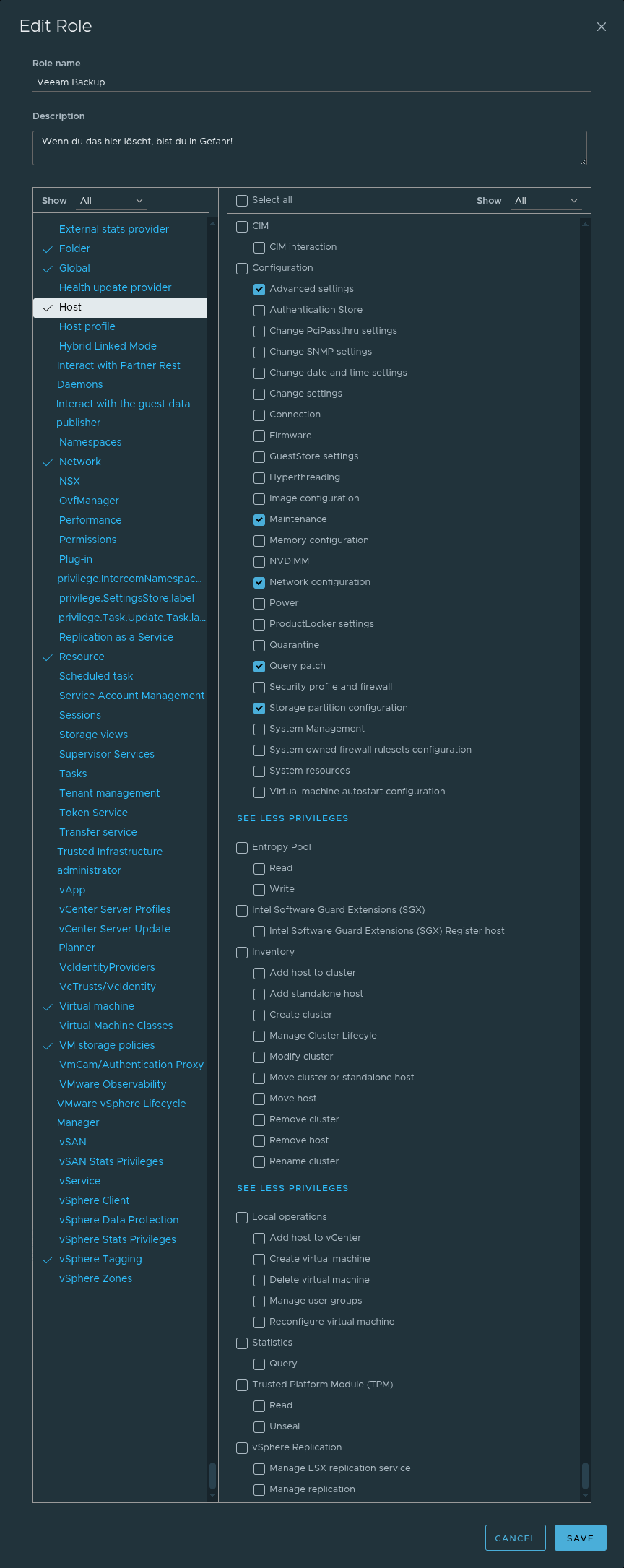
| Host
| Configuration
| Advanced settings
Maintenance
Network configuration
Query patch
Storage partition configuration
|
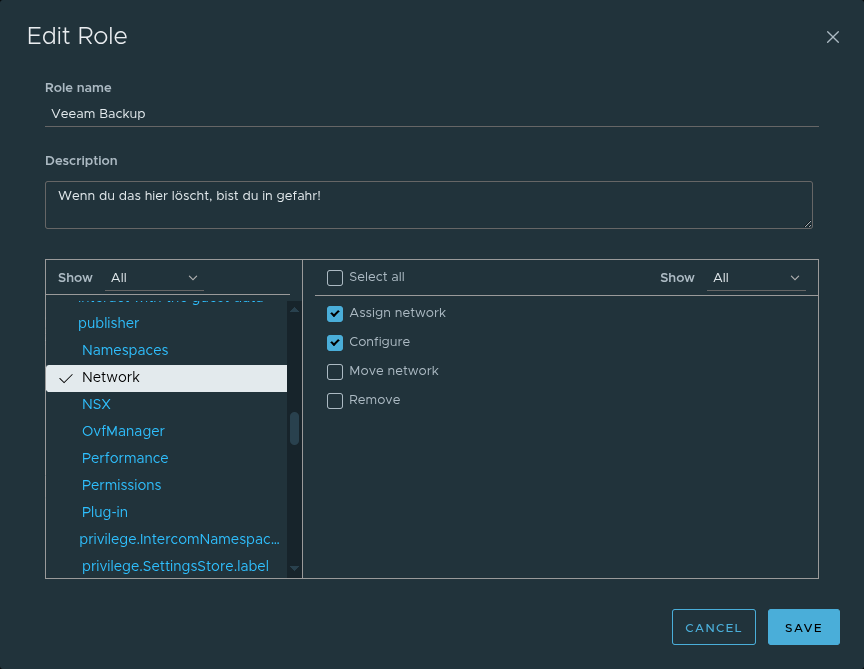
| Network
| Assign network
Configure
|
| Profile-driven storage (for VMware vSphere prior to 8.x)
| Profile-driven storage update
Profile-driven storage view
|
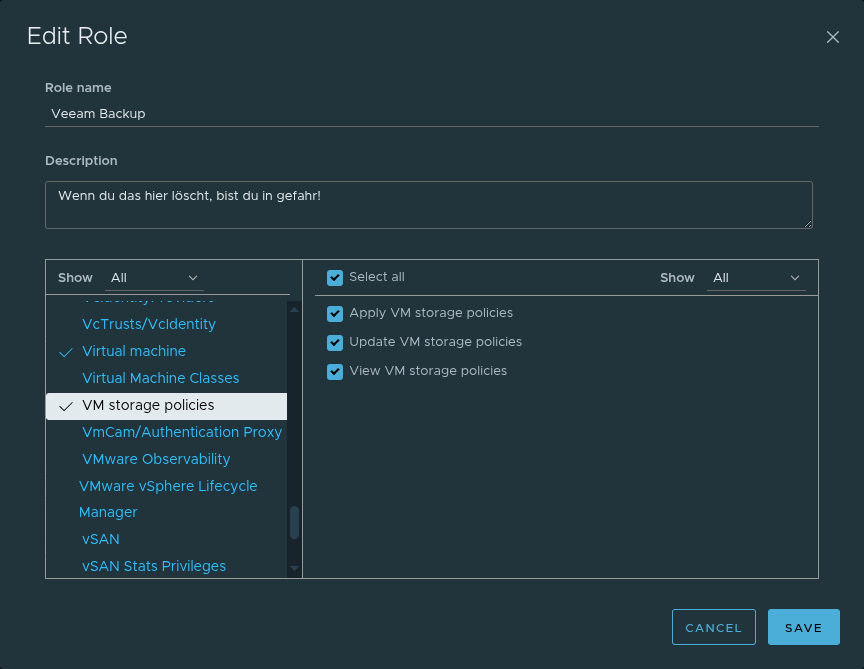
| VM storage policies (for VMware starting from 8.x)
| Apply VM storage policies
Update VM storage policies
View VM storage policies
|
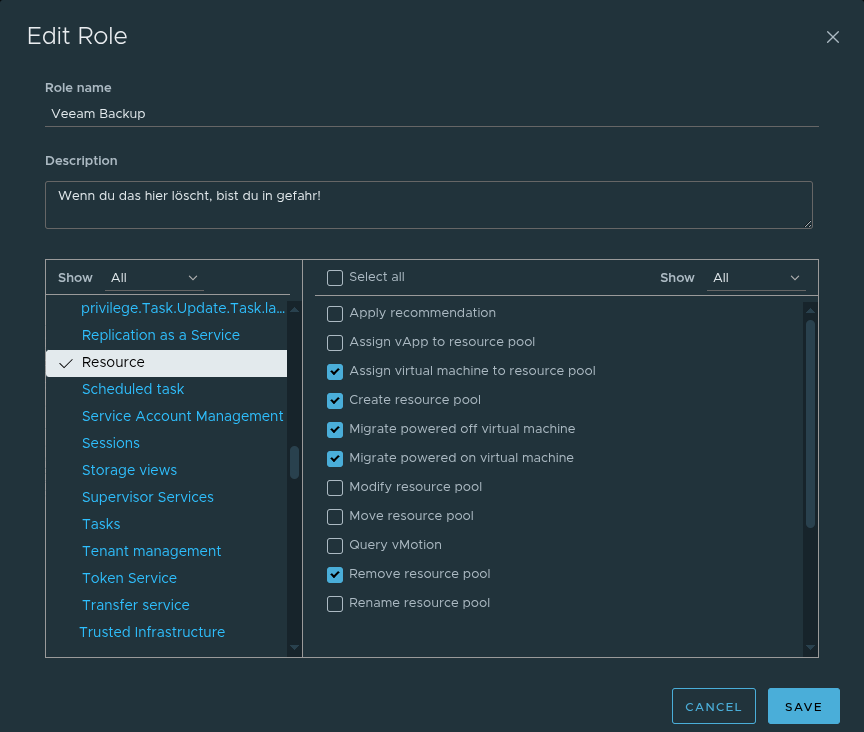
| Resource
| Assign virtual machine to resource pool
Create resource pool
Migrate powered off virtual machine
Migrate powered on virtual machine
Remove resource pool
|
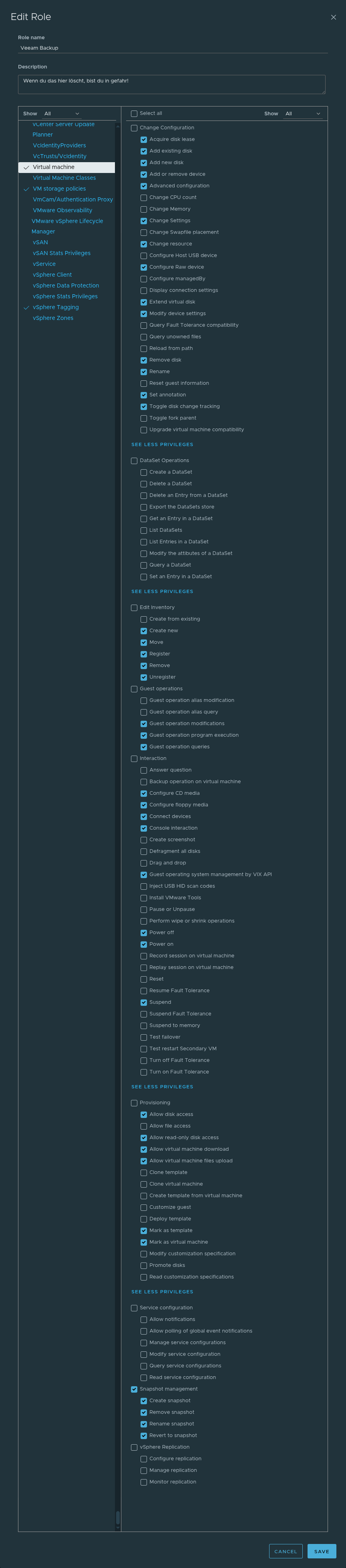
| Virtual Machine
| Change Configuration
| Acquire disk lease
Add existing disk
Add new disk
Add or remove device
Advanced configuration
Change settings
Change resource
Configure RAW device3
Extend virtual disk
Modify device settings
Remove disk
Rename
Set annotation
Toggle disk change tracking
|
| Edit Inventory
| Create
Move
Register
Remove
Unregister
|
| Guest operations
| Guest operation modifications
Guest operation program execution
Guest operation queries
|
| Interaction
| Configure CD media
Configure floppy media
Console interaction
Connect devices
Guest operating system management by VIX API
Power Off
Power On
Suspend
|
| Provisioning
| Allow disk access
Allow read-only disk access
Allow virtual machine download
Allow virtual machine files upload
Mark as template4
Mark as virtual machine4
|
| Snapshot Management
| Create snapshot
Remove snapshot
Rename snapshot
Revert to snapshot
|
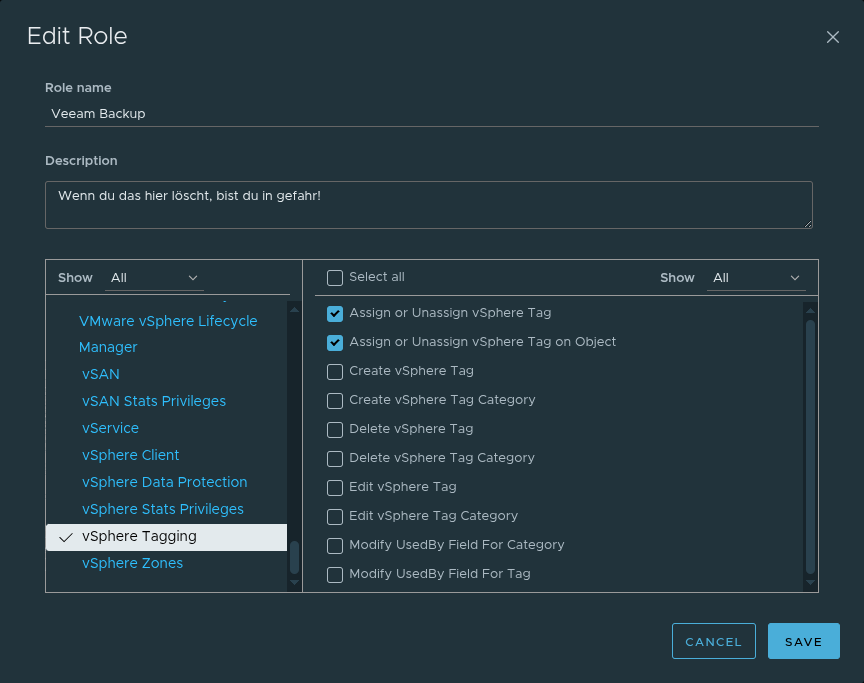
| vSphere Tagging
| Assign or Unassign vSphere Tag
Assign or Unassign vSphere Tag on Object
|
**Cryptographic operations:**
[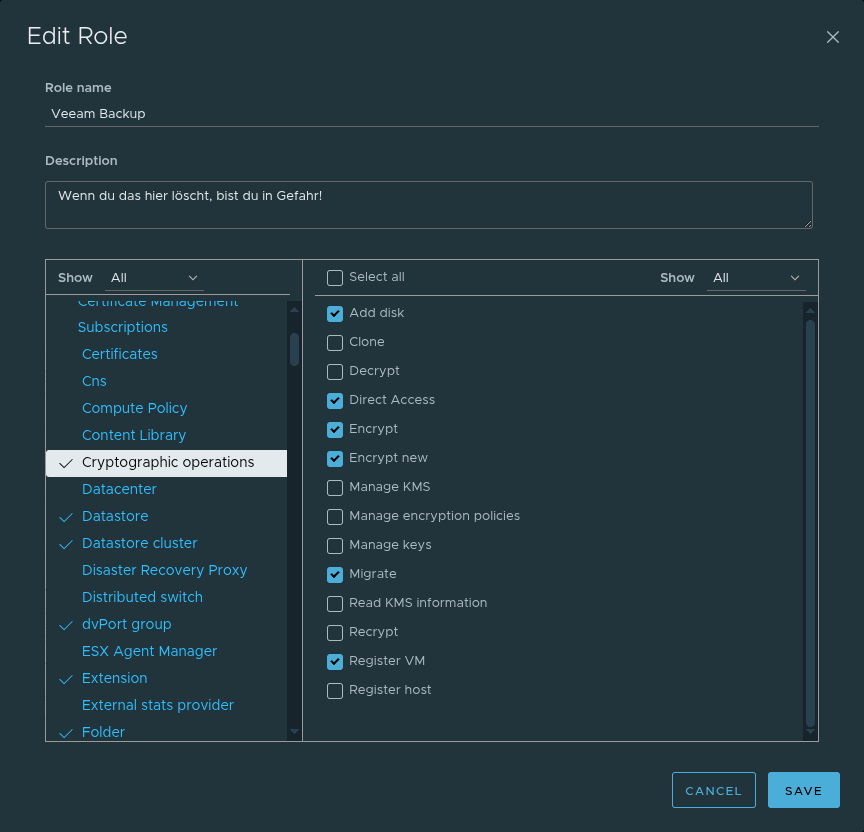](https://mach7.space/uploads/images/gallery/2025-08/SodHdIPVrWJDI51l-3.png)
**Datastore:**
[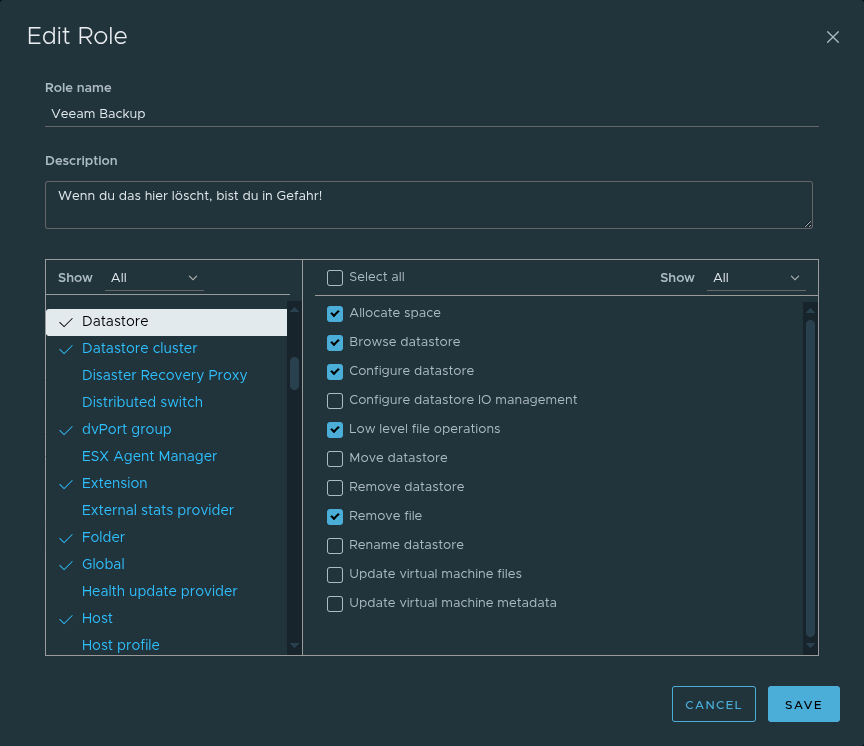](https://mach7.space/uploads/images/gallery/2025-08/3LNSkRD7zLSEU8qi-4.png)
**Datastore cluster:**
[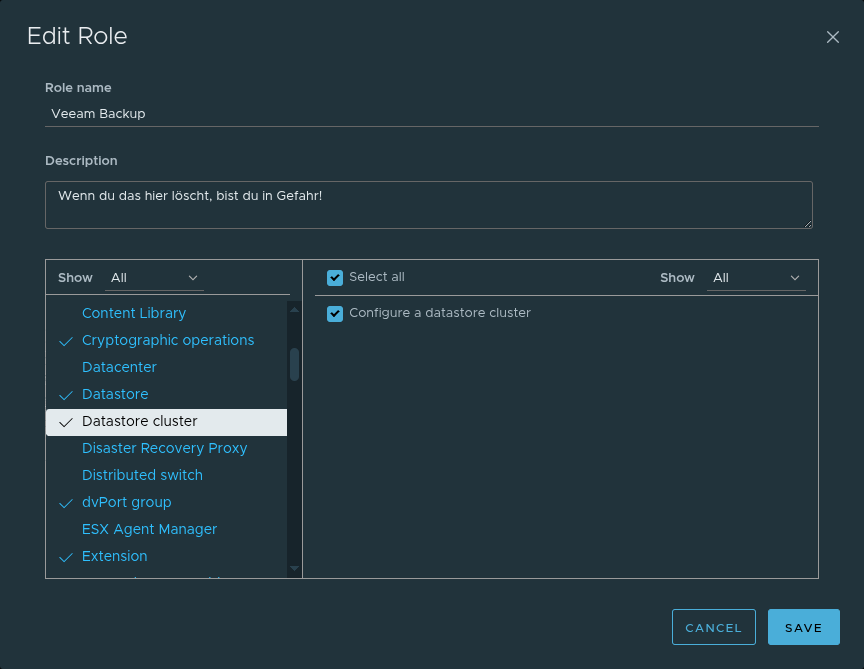](https://mach7.space/uploads/images/gallery/2025-08/fW6va6JDfoTGhrdK-5.png)
**dvPort group:**
[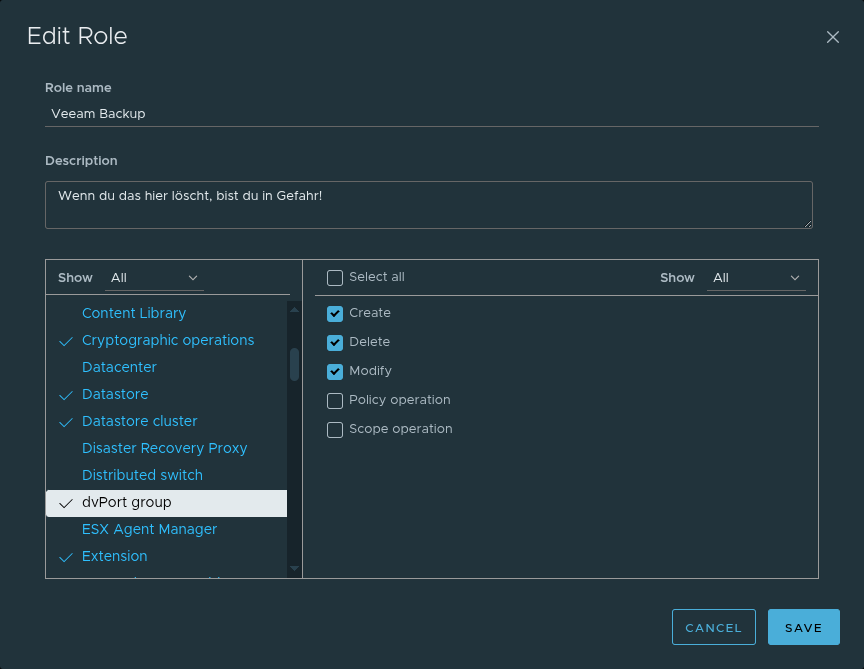](https://mach7.space/uploads/images/gallery/2025-08/hPkZLF1diGn57xRx-6.png)
**Extension:**
[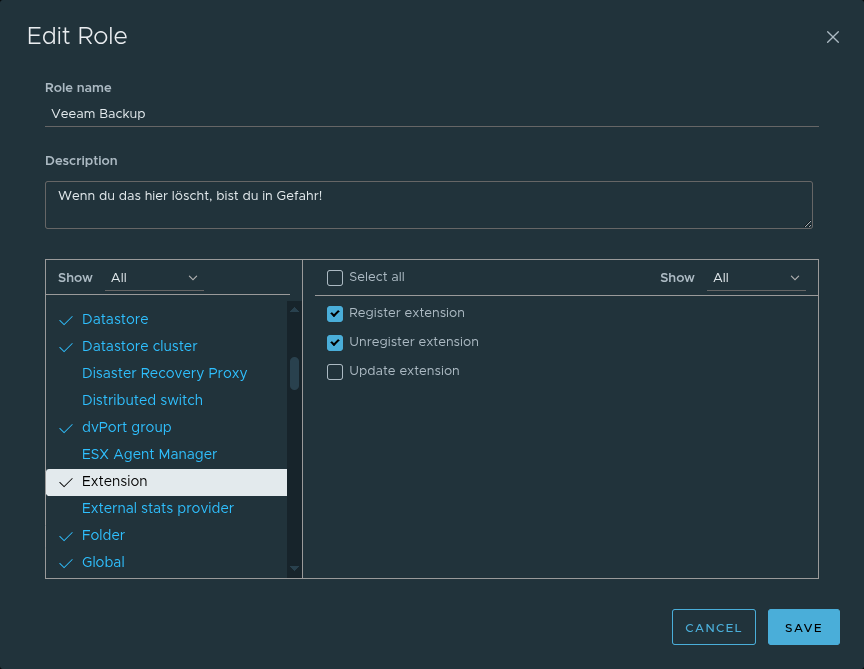](https://mach7.space/uploads/images/gallery/2025-08/kO2tnOkmWoGopAHp-7.png)
**Folder:**
[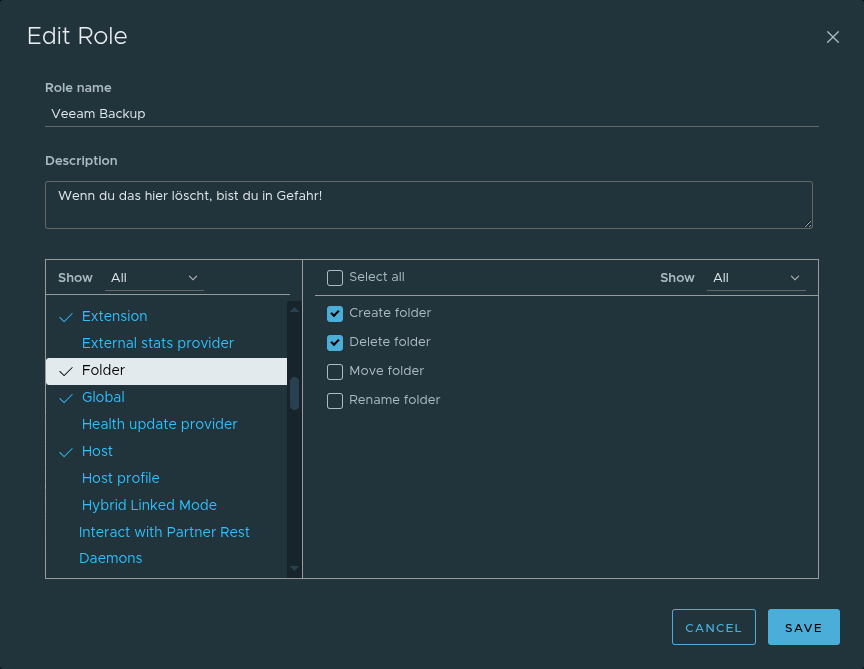](https://mach7.space/uploads/images/gallery/2025-08/JzHJViMb451KF3XI-8.png)
**Global:**
[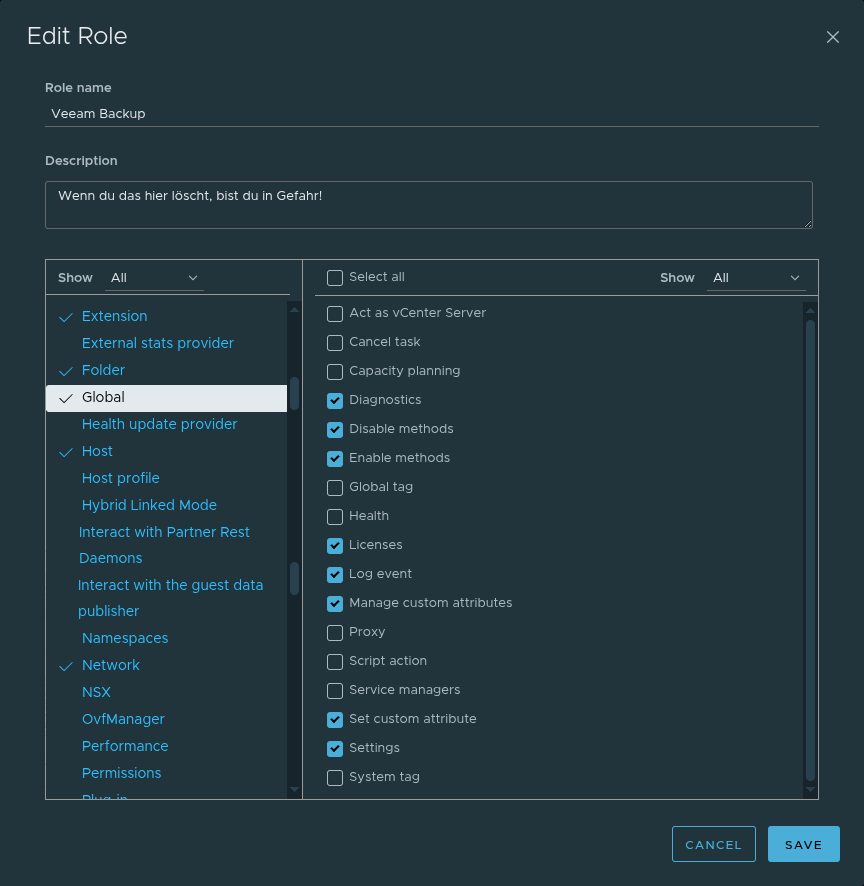](https://mach7.space/uploads/images/gallery/2025-08/XUikFIotAN6MehAB-9.png)
**Host:**
[](https://mach7.space/uploads/images/gallery/2025-08/7WrrEAr7IbuWh84Q-10.png)
**Network:**
[](https://mach7.space/uploads/images/gallery/2025-08/tnKZXNhSM0GcQNId-11.png)
**Resource:**
[](https://mach7.space/uploads/images/gallery/2025-08/kWoocg1l0Nwau2OF-12.png)
**Virtual machine:**
[](https://mach7.space/uploads/images/gallery/2025-08/yX2MXdLNJcjhJfOj-13.png)
**VM storage policies:**
[](https://mach7.space/uploads/images/gallery/2025-08/Cz7Ny1q85XrYMn8m-14.png)
**vSphere Tagging:**
[](https://mach7.space/uploads/images/gallery/2025-08/SW9PiyuWW09EfBc0-15.png)
# ESXi 8: Default-Gateway setzen
Gilt für ESXi 8.x, Standard TCP/IP-Stack (Management). Beispielnetz: 10.10.8.0/21, Gateway 10.10.15.254.
## Problem
Ein ESXi-Host lässt sich nicht ins vCenter einbinden oder verliert die Verbindung, weil kein (oder ein falsches) Default-Gateway gesetzt ist. In der Routingtabelle erscheint nur die direkt verbundene Route ohne *default*.
```
~ # esxcli network ip route ipv4 list
Network Netmask Gateway Interface Source
--------- ------------- ------------ --------- ------
10.10.8.0 255.255.248.0 0.0.0.0 vmk0 MANUAL
```
## Lösung
1. **Aktuelle Routen prüfen**```
esxcli network ip route ipv4 list
```
2. **Default-Route setzen** (Standard-Stack): ```
esxcli network ip route ipv4 add --network default --gateway 10.10.15.254
```
Alternativ gleichwertig:
```
esxcli network ip route ipv4 add --network 0.0.0.0/0 --gateway 10.10.15.254
```
3. **Ergebnis kontrollieren**```
esxcli network ip route ipv4 list
esxcfg-route -l
```
Erwartete Ausgabe:
```
Network Netmask Gateway Interface Source
--------- ------------- ------------ --------- ------
default 0.0.0.0 10.10.15.254 vmk0 MANUAL
10.10.8.0 255.255.248.0 0.0.0.0 vmk0 MANUAL
```
4. **Verbindung testen**```
vmkping 10.10.15.254
```
Bei mehreren VMkernel-Ports im selben Subnetz kann das Interface erzwungen werden:
```
vmkping -I vmk0 10.10.15.254
```
**Hinweis:** Das Setzen der Default-Route über `esxcli` ist persistent. Nach Reboots kann jedoch der in einem Subnetz bevorzugte VMkernel-Port wechseln (niedrigste vmk-Nummer). Achte darauf, dass der gewünschte Management-vmk im Subnetz die niedrigste Nummer hat oder nur dieser das Tag `Management` trägt.
## Falsche Default-Route zuerst entfernen (optional)
Falls bereits eine falsche Default-Route existiert, diese erst löschen und dann korrekt setzen:
```
# Beispiel: alte Default-Route entfernen
esxcli network ip route ipv4 remove --network default --gateway
# korrekte Default-Route hinzufügen
esxcli network ip route ipv4 add --network default --gateway 10.10.15.254
```
Legacy-Befehl (gleiches Ergebnis):
```
esxcfg-route -a default 10.10.15.254
```
## Mehrere VMkernel-Ports im selben Subnetz
Wenn mehrere VMkernel-Ports im gleichen L3-Netz existieren, nutzt ESXi den **niedrigsten** vmk für den Gateway-Traffic. Bei Bedarf Management-Tags prüfen/anpassen:
```
esxcli network ip interface list
esxcli network ip interface ipv4 get
esxcli network ip interface tag list
# Beispiele:
esxcli network ip interface tag add --interface-name=vmk0 --tag=Management
esxcli network ip interface tag remove --interface-name=vmkX --tag=Management
```
## Spezielle TCP/IP-Stacks (optional)
vMotion, Provisioning und NFS haben eigene TCP/IP-Stacks mit eigenen Gateways. Nur anpassen, wenn diese Workloads betroffen sind:
```
# Routen im vMotion-Stack anzeigen
esxcli network ip route ipv4 list --netstack=vmotion
# Default-Gateway im vMotion-Stack setzen
esxcli network ip route ipv4 add --netstack=vmotion --network default --gateway 10.10.15.254
```
## Fehlerbilder, die auf fehlendes Gateway hindeuten
- Host lässt sich im vCenter nicht hinzufügen oder bleibt im Status „Not responding“.
- DNS-Auflösung funktioniert, aber Verbindungen zu externen Netzen schlagen fehl.
- `esxcli network ip route ipv4 list` zeigt keine *default*-Route.
## Risiko- und Durchführungs-Hinweise
**Achtung:** Änderungen an Routing und VMkernel-Ports können die Management-Konnektivität unterbrechen. Wenn möglich, lokal an der ESXi-Shell (DCUI/Remote-Console) arbeiten oder Out-of-Band-Zugriff bereit halten.
---